Your whole team in one workspace Everyone sees only what they need
Invite people from your design studio or office to your workspace, give them permission groups and assign clients. Payments, documents and each person’s activity history live in the same place.
Three steps to working as a team
Once you switch to the Studio plan, the Team module appears in the menu. Invited people work in your workspace and see only what their permission groups allow.
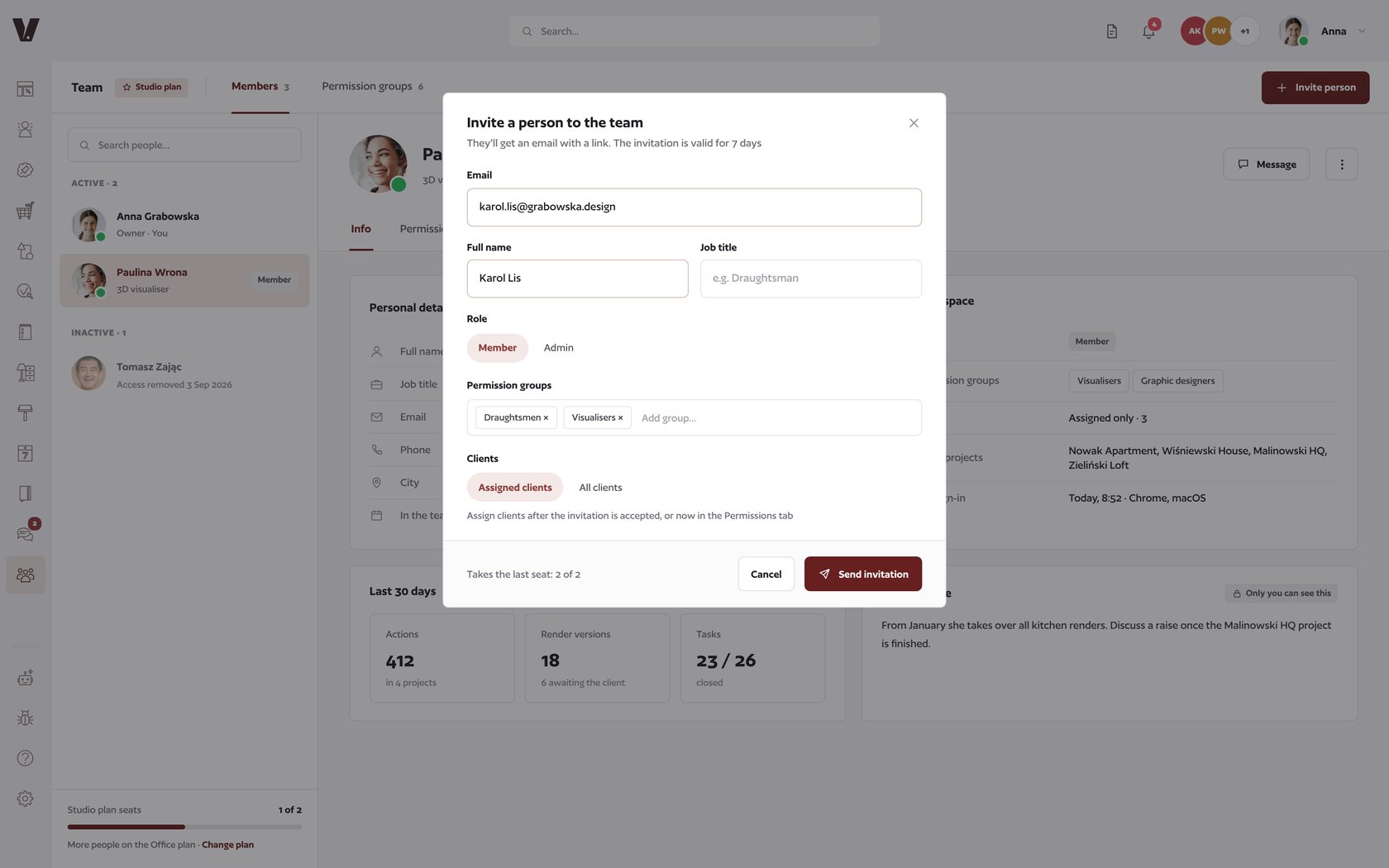
Invite a person
Email, name, job title and role. Invitations are valid for 7 days.
Assign a group
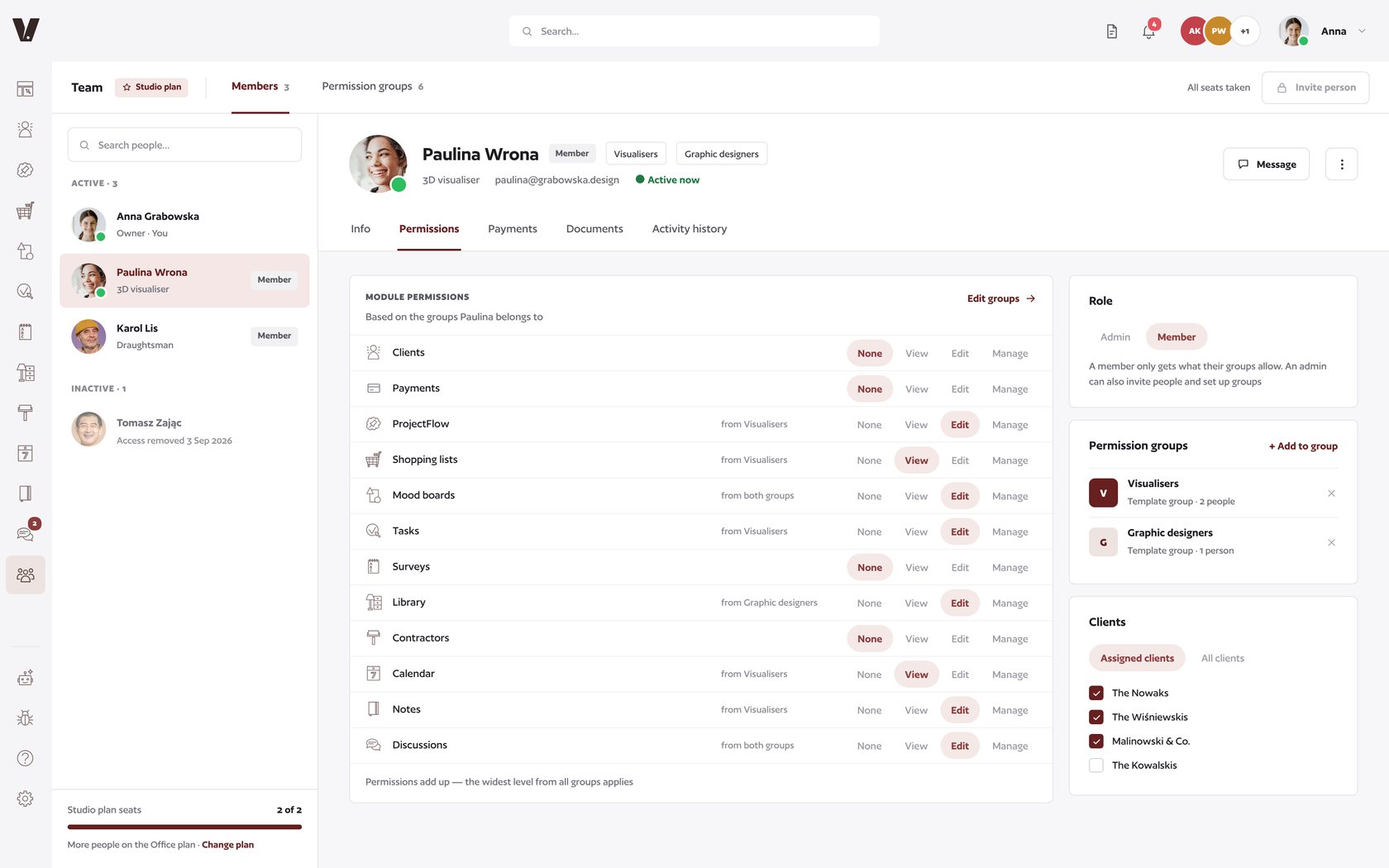
The group decides which modules the person sees and at what level: view, edit or manage.
Assign clients
All clients or only selected ones. Other projects simply stay hidden.
Team members
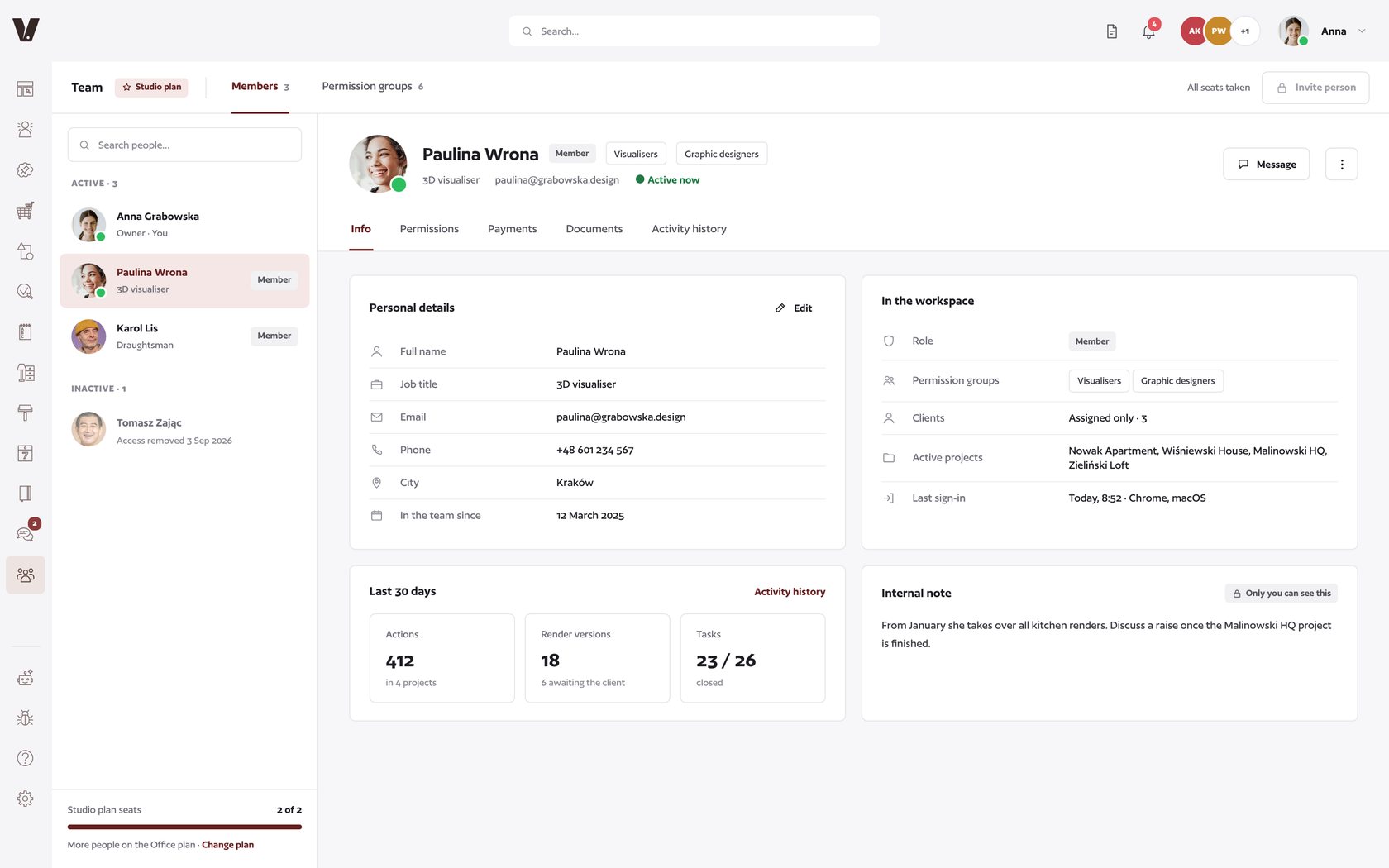
People on the left, profile on the right. Contact details, role, groups, assigned clients and activity from the last 30 days.
- A profile for everyone - job title, contact, active projects and last sign-in.
- Internal note - only you can see it.
- Remove access without losing data: the person moves to inactive, history included.
Permission groups
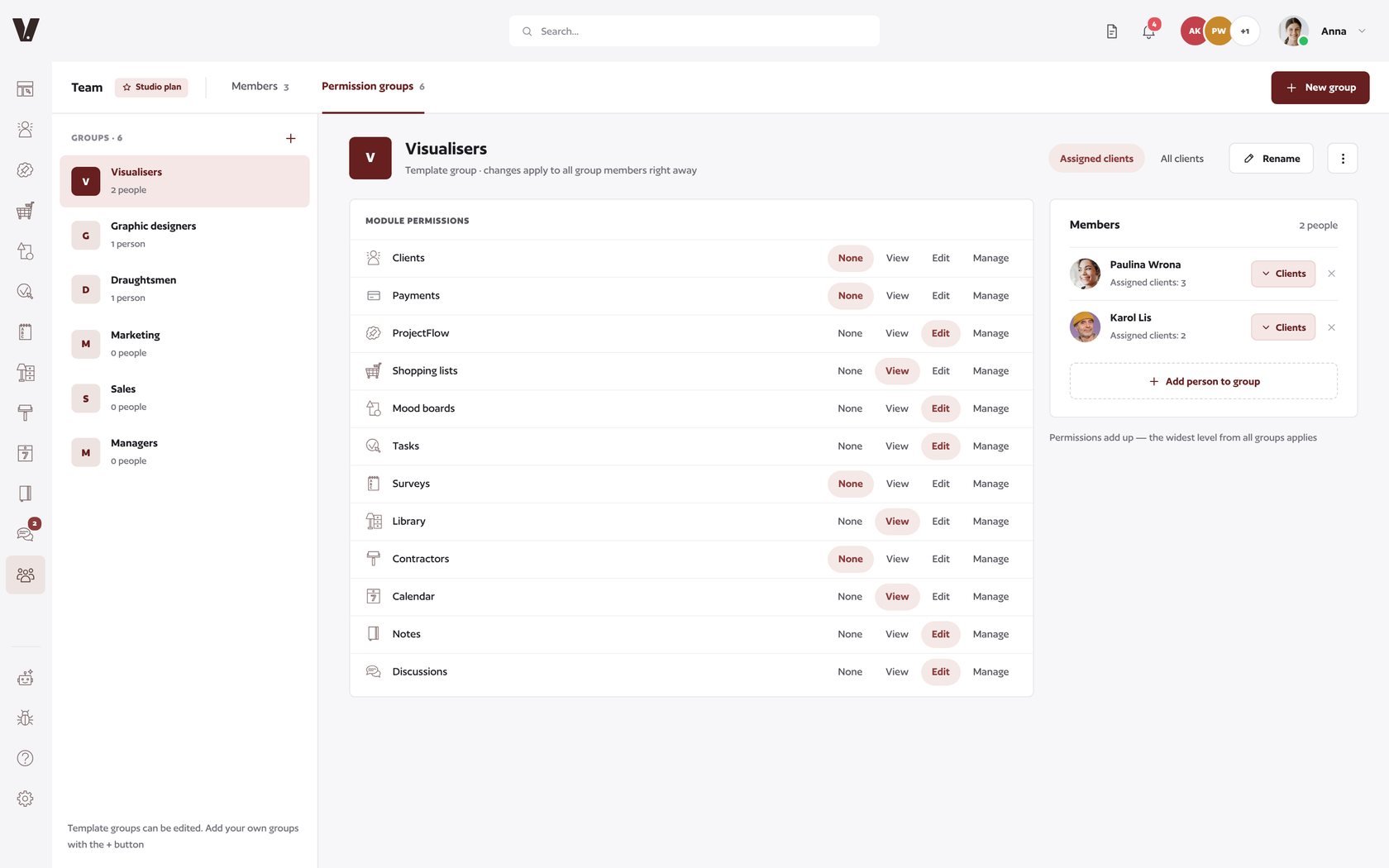
Set permissions for a group, not for each person separately. A change in a group applies to all its members right away.
- 12 modules, 4 levels - none, view, edit or manage.
- Template groups - Visualisers, Graphic designers, Draughtsmen and more. Add your own too.
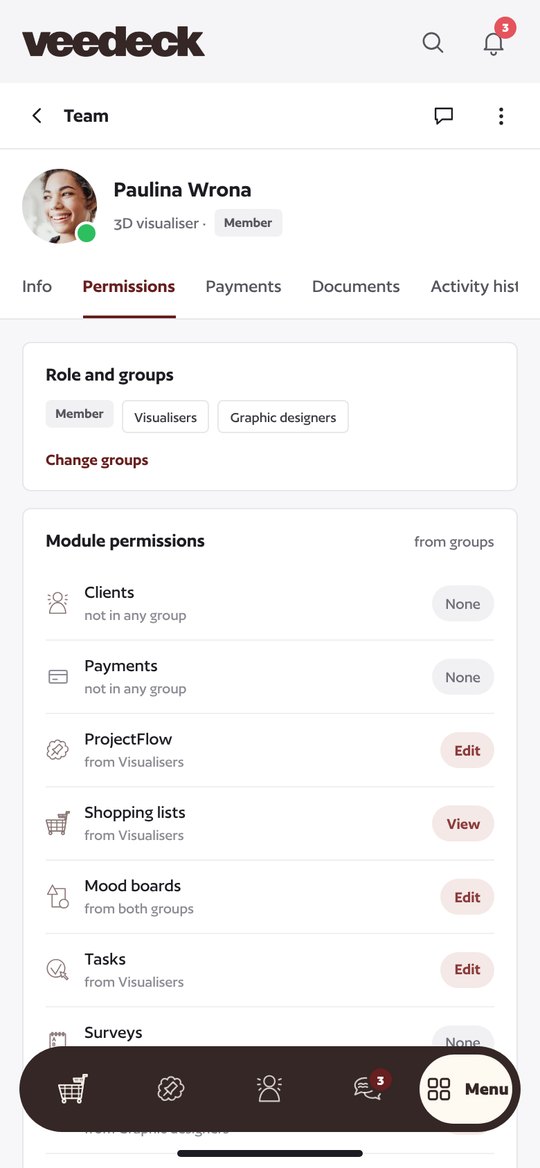
- Permissions add up - the profile shows which group each level comes from.
Team payments
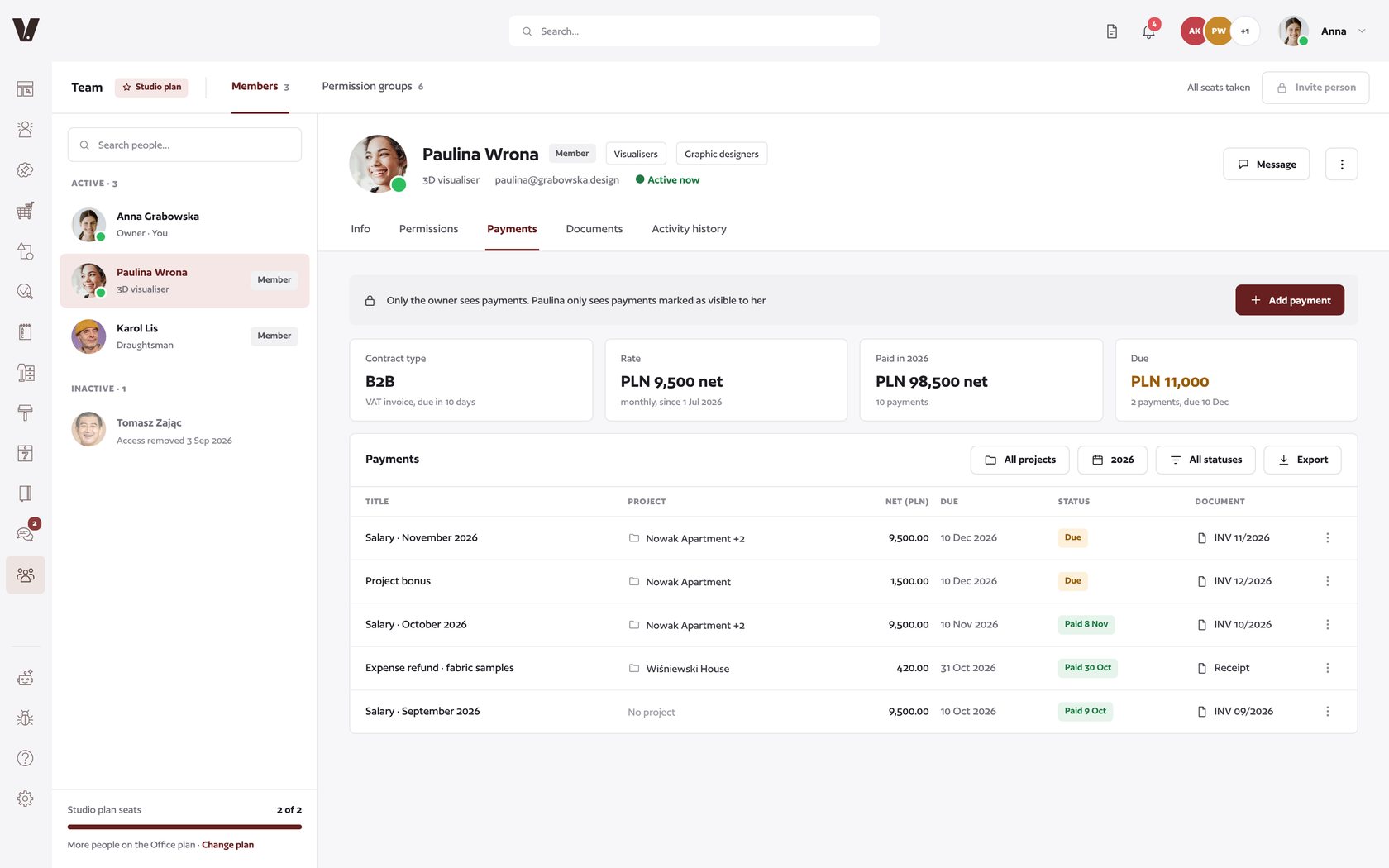
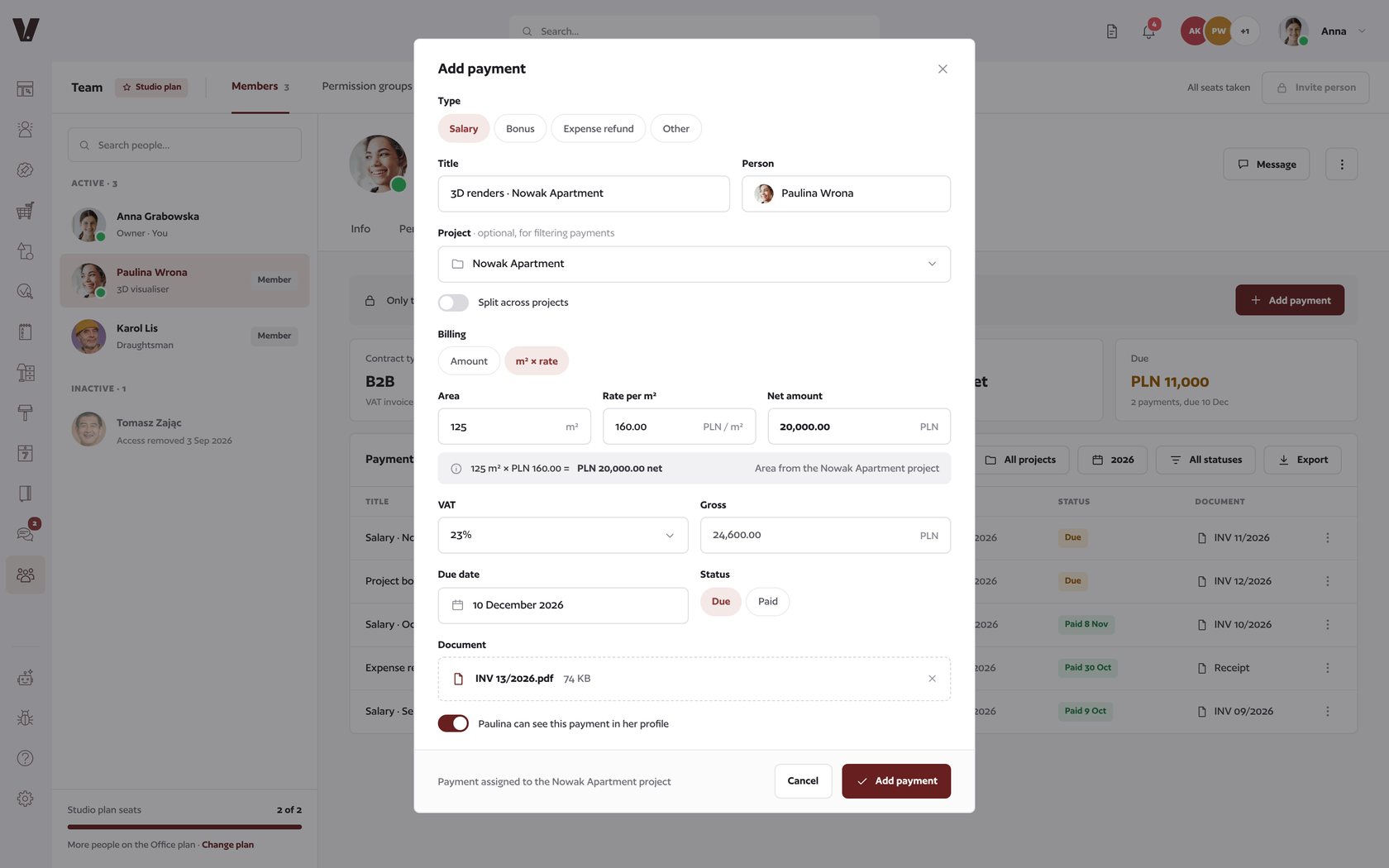
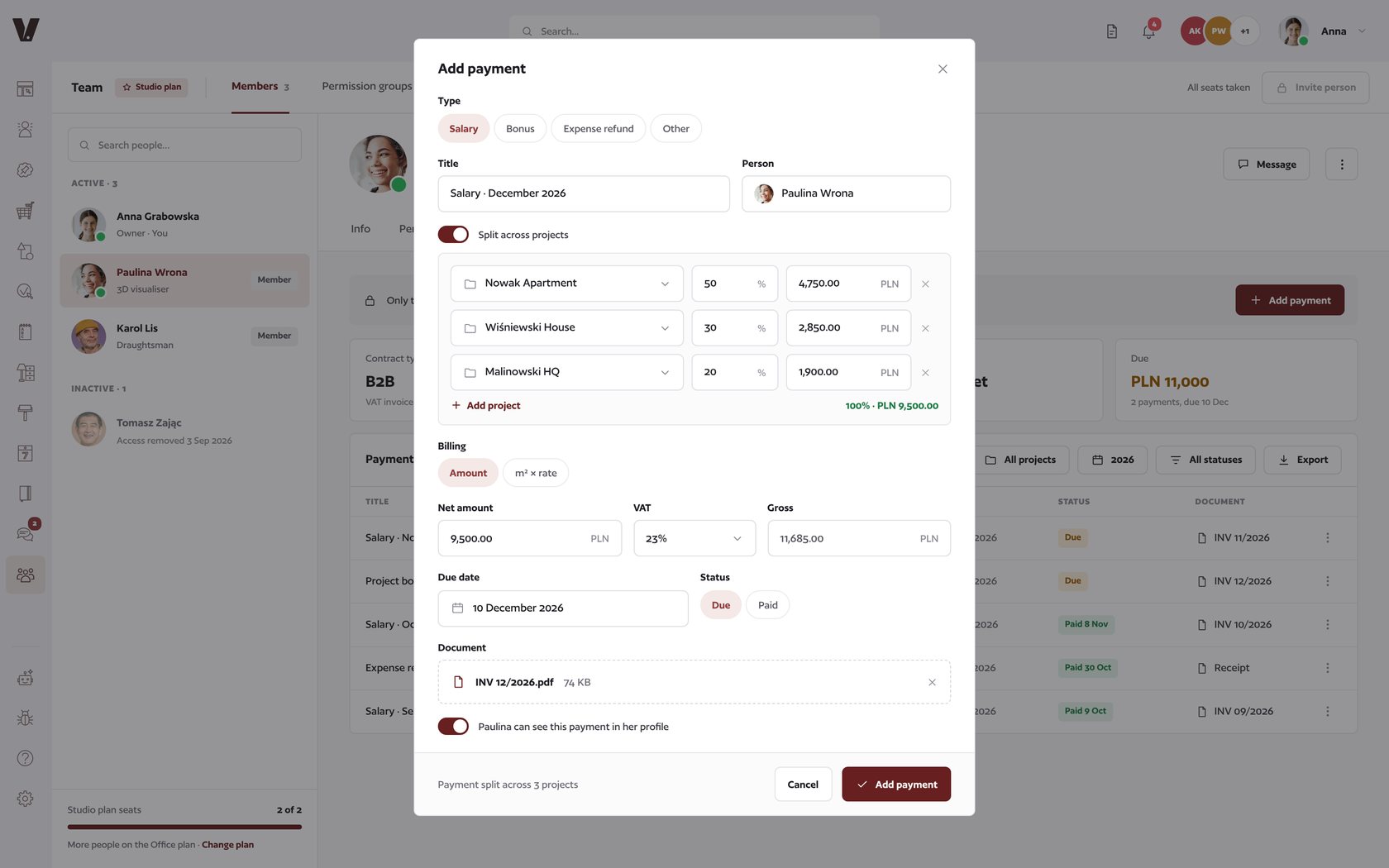
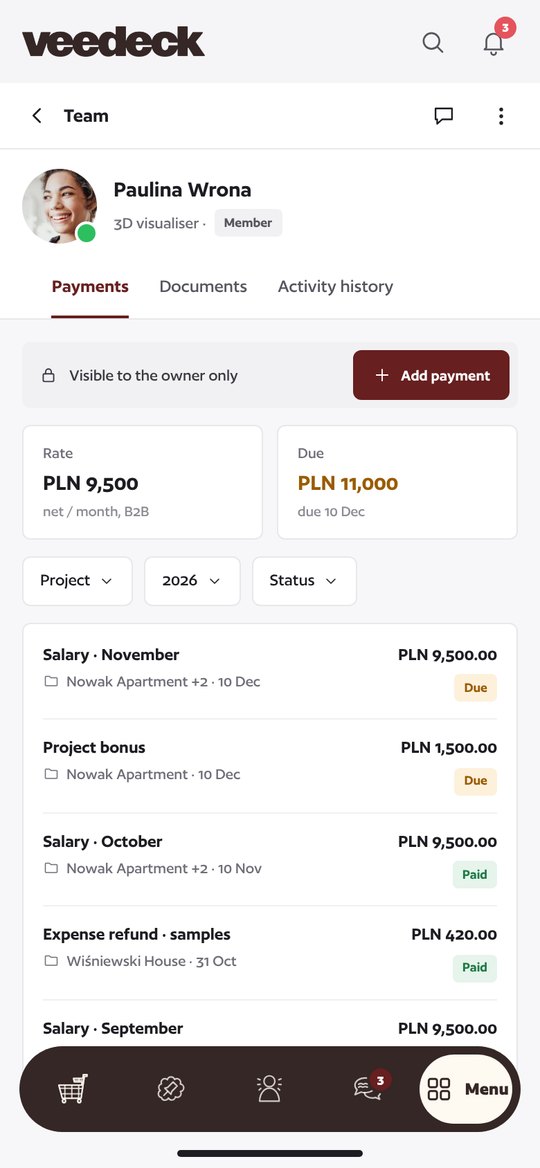
Salaries, bonuses and expense refunds for each person in one table. Assign a payment to a project or split it across several projects.
- m² × rate billing - e.g. 125 m² × 160 PLN, the amount is calculated for you.
- Split across projects - by percentage or amount, always adding up to 100%.
- You decide what the employee sees - share each payment with them or keep it private.
Documents
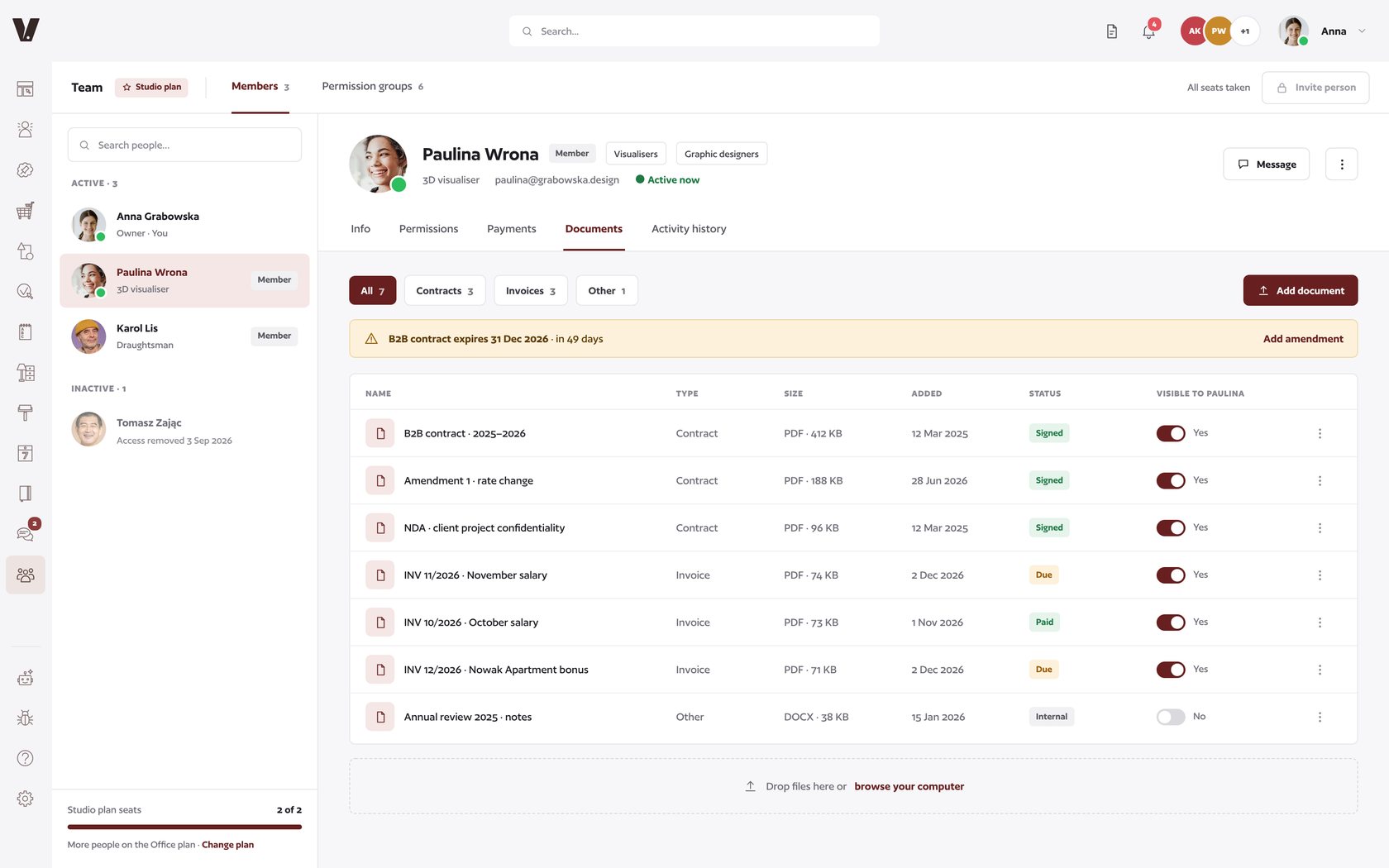
Each person’s contracts, invoices and amendments in one place. veedeck reminds you before a contract ends.
- Filters - contracts, invoices and other documents.
- Visibility - a toggle decides which documents the employee can see.
Activity history
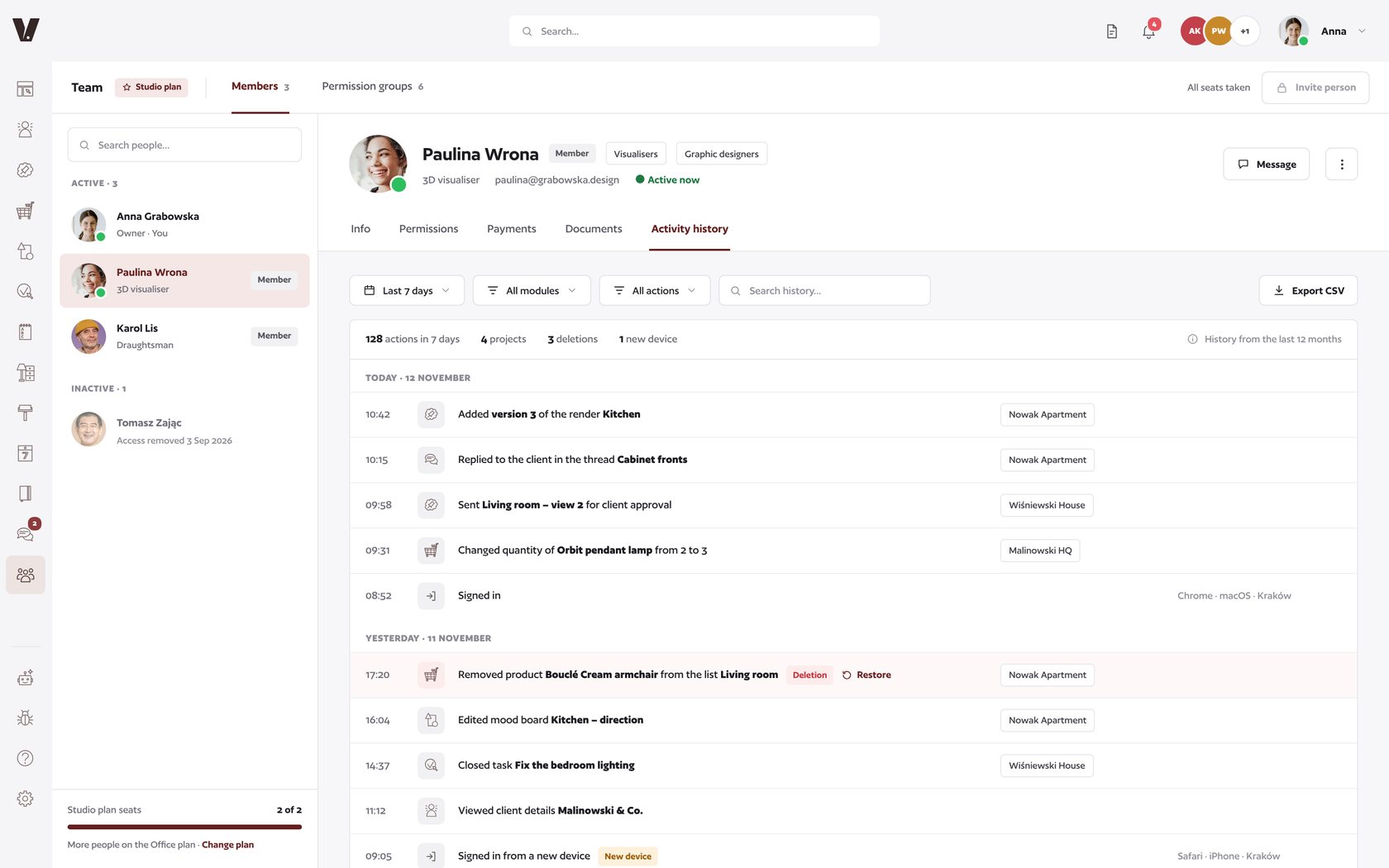
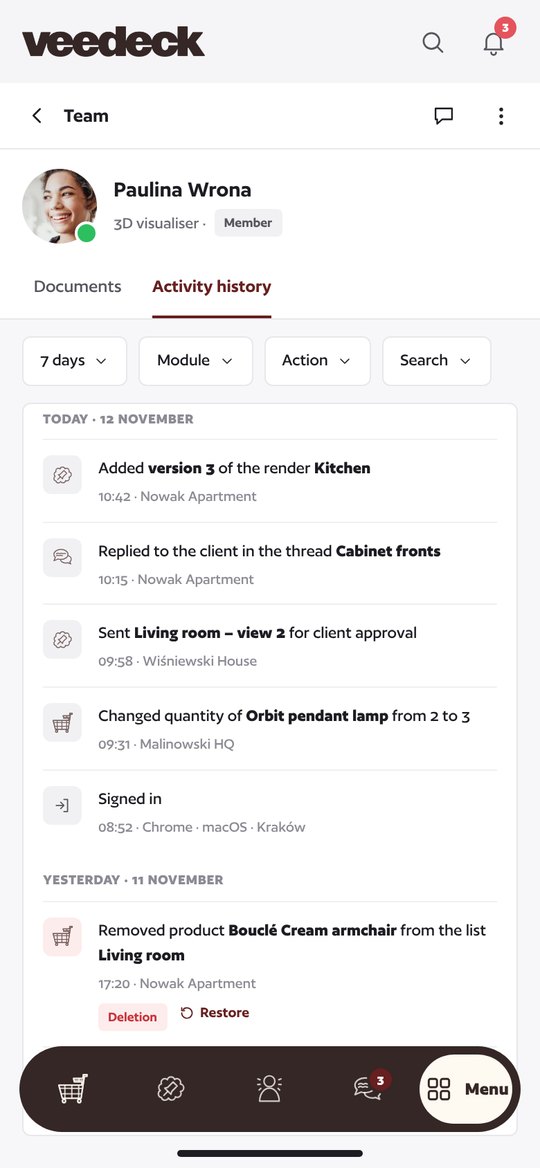
See who did what in your workspace: new render versions, replies to clients, FF&E schedule changes and sign-ins.
- Filters and search - by date range, module and action type.
- Restore - bring back a deleted item in one click.
- New devices - sign-ins from a new phone or computer are clearly marked.
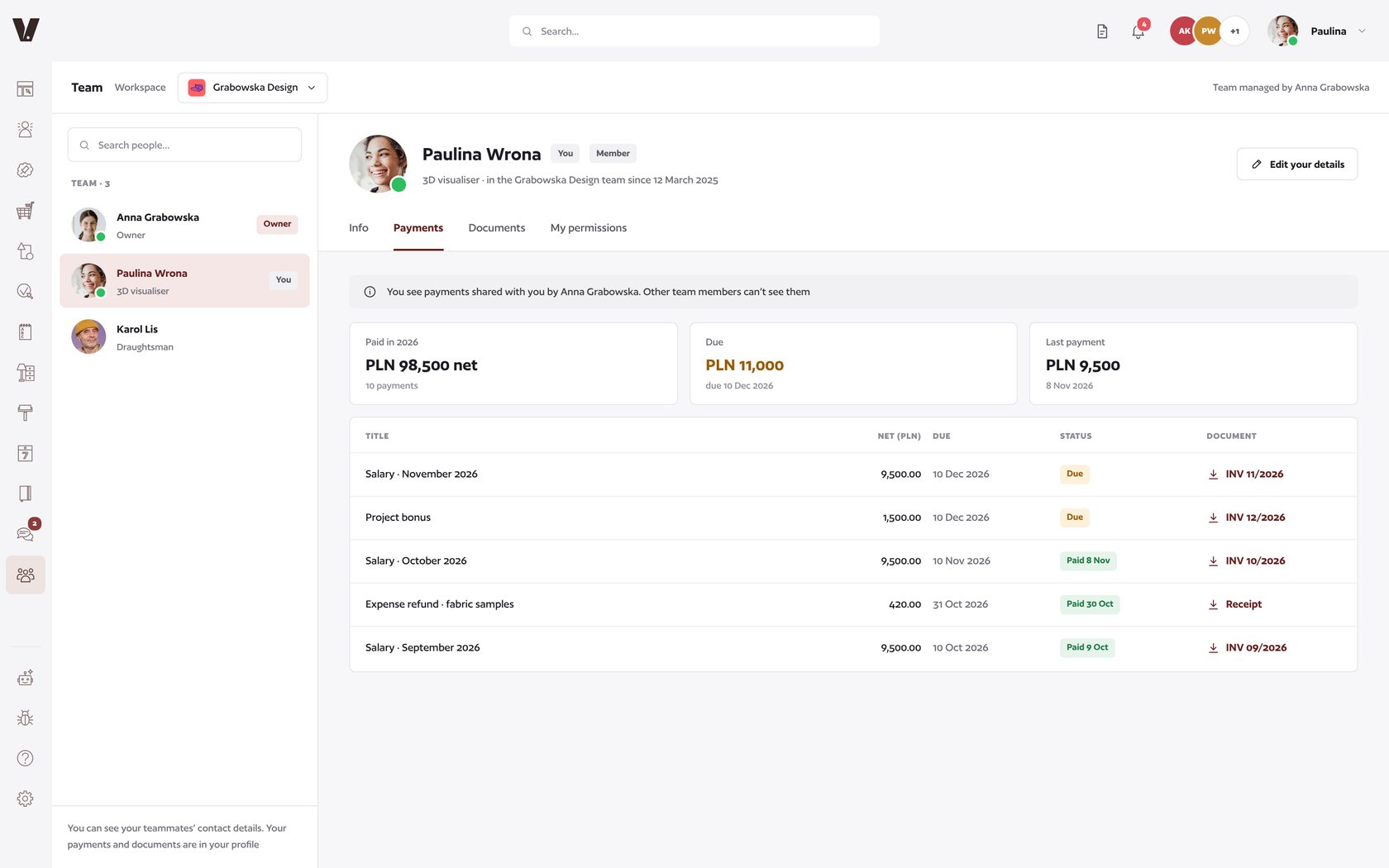
The team member’s view
A team member sees how to contact the rest of the team, their own permissions, and the payments and documents you share with them. Nothing more.
- Their own details - everyone can update their phone or job title.
- Privacy - nobody sees other people’s payments.
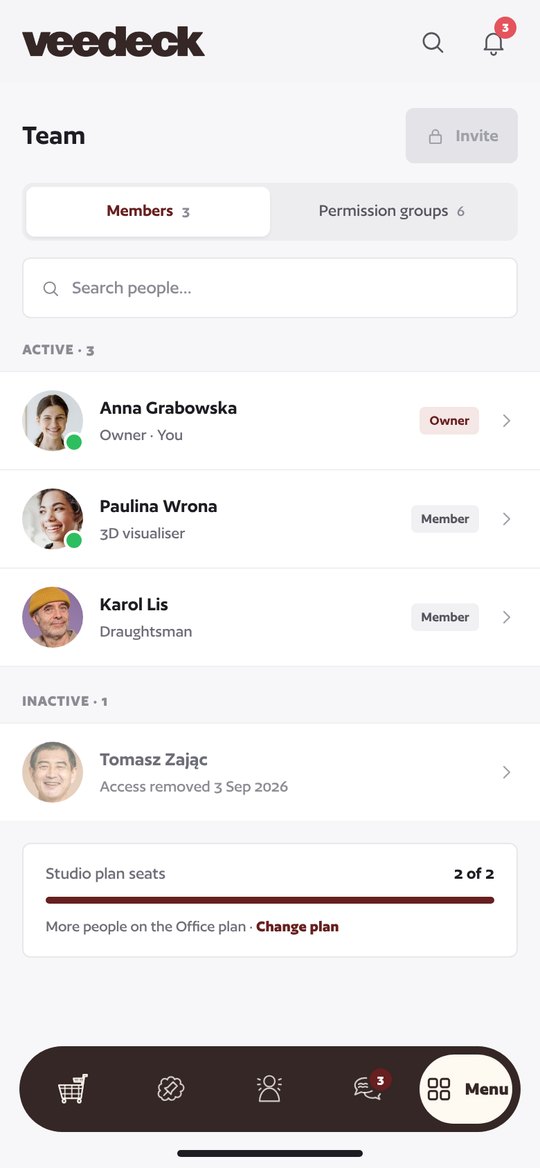
Your team, always at hand
The same module in the mobile app: people, permissions, payments and activity history.
In the Studio and Office plans
The Team module appears in the menu once you switch to one of these plans. See how veedeck works for interior design studios and design offices.
For interior design studios
- Members and permission groups
- Payments, documents and activity history
- Team training included
For design offices
- Everything in Studio
- Dedicated features and integrations
- Dedicated support and onboarding
Frequently asked questions
Who sees the Team module?
The workspace owner and the people added to their team. A designer with their own workspace sees the module only after switching to Studio or Office and adding people.
What about user management in Settings?
Members, invitations and permission groups now live in the Team module. The Team item in Settings takes you straight there.
How many people can I add?
On Studio, you plus 2 more people. On Office, team size is tailored to your needs.
Are team payments linked to client payments?
No. They are payments to team members only. The project on a payment is just for description and filtering.
Can a team member see other people’s payments?
No. Everyone sees only their own payments and documents, and only the ones you share with them.
Work with your team in one workspace
Your first 30 days are free. No credit card, no commitment.